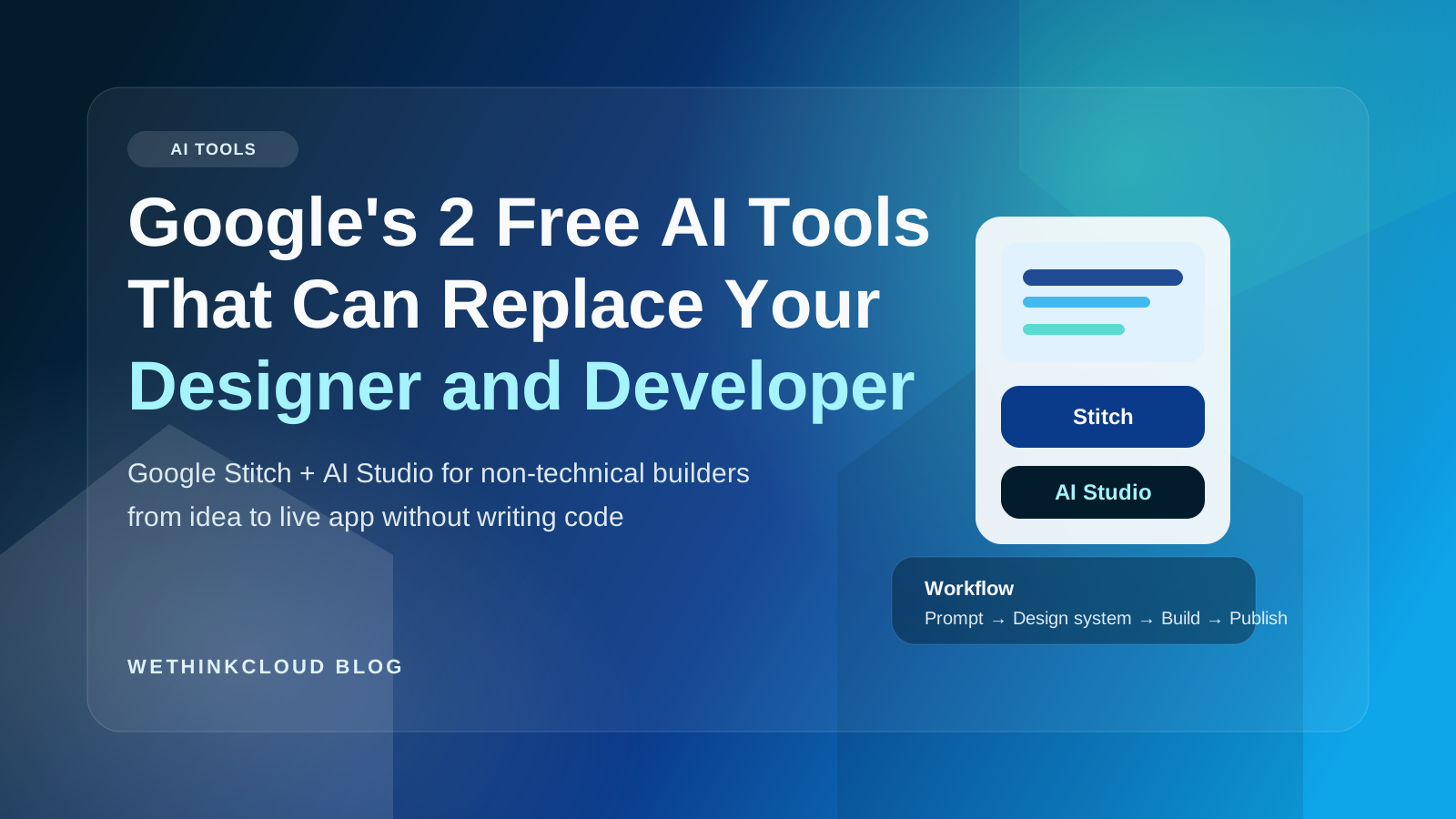
How Google Stitch and AI Studio together let you go from idea to live app without writing a single line of code.
Most people know about ChatGPT. Most people have heard of Claude. But there are two free tools sitting quietly inside Google's ecosystem that almost nobody is talking about, and together, they just changed the way solo founders, marketers, and non-technical builders can create real, working applications.
This is a breakdown of exactly how they work, what makes them different, and practical use cases that show what's now possible with zero design experience and zero budget.
The Problem With AI-Built Apps Today
You've probably felt this. You ask an AI tool to build you something, an app, a landing page, a dashboard, and the result is fine. It works. But it looks like every other AI-generated product. Same font choices. Same spacing. Same vibe.
The reason is simple: when you type "make it modern and clean," the AI is guessing. It has no visual reference, no design rules to anchor to. Every screen ends up slightly different. The buttons don't match. The spacing feels random. It's a prototype, not a product.
Google built something to fix exactly this.
Tool #1: Google Stitch — Design Without a Designer
URL: https://stitch.withgoogle.com
Google Stitch is a free AI design tool that doesn't just generate screens, it builds a design system first. That's the key difference.
Before it renders a single page, Stitch locks in your colors, fonts, button styles, and spacing rules. Every screen it generates from that point follows the same visual rulebook. The result is something that actually looks cohesive, like a real product team built it.
How to Use It
- Go to stitch.withgoogle.com
- Click New Project and select Web or App
- Type your prompt. Describe what you're building, the screens you need, and the aesthetic feel
- Select Gemini 2.5 Pro from the dropdown and hit Generate
For example, a prompt like:
Build a simple travel planner app called Travel Go. I need a landing page with a hero section, destination search, trip cards with photos, and testimonials. A trip dashboard with itinerary timeline, map view, daily activities, and budget breakdown. Modern, warm, photo-heavy aesthetic.
produces two fully polished, consistent screens in under a minute.
The URL Trick Nobody Is Using
Here's where it gets really interesting. Instead of describing the design you want in words, you can just show it.
Find a website whose design you love. Copy the URL. Paste it into Stitch's prompt bar. That's your entire prompt.
Stitch reads the full website, every page and visual element, and extracts a complete design system from it. Colors, fonts, corner radius, button styles, spacing. All of it, automatically turned into a reusable rulebook you can build from.
This means you stop trying to describe aesthetics and start using visual references the way a real designer would.
The design.md File — Your Design System, Portable
Underneath everything Stitch generates, there's a file called design.md. Think of it as a portable cheat sheet, a text file that captures your entire design system in a format any coding tool can read.
You can take that file and drop it into Cursor, Replit, or any development tool, and it will follow the same design rules. Your design system travels with your project.
Fixing One Thing Without Rebuilding Everything
The old workflow was painful: if something looked wrong, you regenerated the whole app and hoped the next version got it right. Regenerate and pray.
Stitch works differently. You describe exactly what's wrong and it fixes only that element.
If your hero text isn't readable because it's blending into the background, you just say: Add a dark overlay behind the hero text and make the font bolder. Done. Same design, same vibe, just the specific issue resolved.
You can even activate voice mode and describe the problem out loud. Stitch adjusts accordingly.
Mixing Inspiration From Multiple Sources
You can also pull from multiple references in the same session. Say you want to keep your current color palette but adopt the layout structure from a different site, paste that second URL, describe what you want to borrow, and Stitch updates the layout while keeping your original design system intact. Same golden tones, same font hierarchy. Only the structure changes.
Generate Variations — Explore Without Committing
One of the most useful features: select any section of your design and click Generate Variations.
A panel opens where you can choose:
- Refine — keeps it close to what you have
- Explore — pushes the creative range further
- Reimagine — starts almost from scratch
You set what to vary, such as layout, images, or color scheme, and how many variants to generate. Three different approaches appear side by side on the canvas. Compare, pick, and delete the rest. It's an exploration tool, not a commitment.
Instant Prototype — Feel the App Before Writing Code
Once your design is ready, go to More and then Instant Prototype. A new tab opens with a fully navigable preview of your app. Click through screens. Scroll. Switch to tablet or mobile view. The layout adapts. Navigation collapses. Everything reflows.
And all of this is still just design. Not a single line of code written.
Tool #2: Google AI Studio — Turn Design Into a Working App
URL: https://aistudio.google.com
This is where the design becomes a real product. And the handoff between Stitch and AI Studio is seamless.
In Stitch, click the Export button in the top right. Select AI Studio from the options. AI Studio opens with all your screens already loaded and the prompt pre-filled. Hit Build.
The typical fear at this point is that the styling breaks. Fonts change. Spacing goes off. That's been the pattern with most design-to-code workflows.
It held. The exported app matched the design. Same colors, same fonts, nothing broken.
From there, you can add real functionality through the AI Studio chat. Describe what you want, a functional search bar with date pickers, guest counts, and live trip results, and the tool builds it in. Not just visually. Actually functional.
Deploy It to the World
When your app is ready, click Publish inside AI Studio. Connect a Google Cloud project, set up billing, and your app gets a live URL. Share the link. Anyone can use it.
From idea to live product. Two free tools. No designer. No developer.
Honest Take: Does This Replace Designers?
No.
What it does is raise the floor. If you're not a designer, you now get professional-looking results. If you're an exceptional designer, these tools don't threaten your work because they can't replicate taste.
But for founders, marketers, and builders who've been sitting on product ideas because they couldn't afford the design and development cost, this is a genuine upgrade. The barrier was money and technical skill. That barrier is now lower than it's ever been.